Overview — what it does
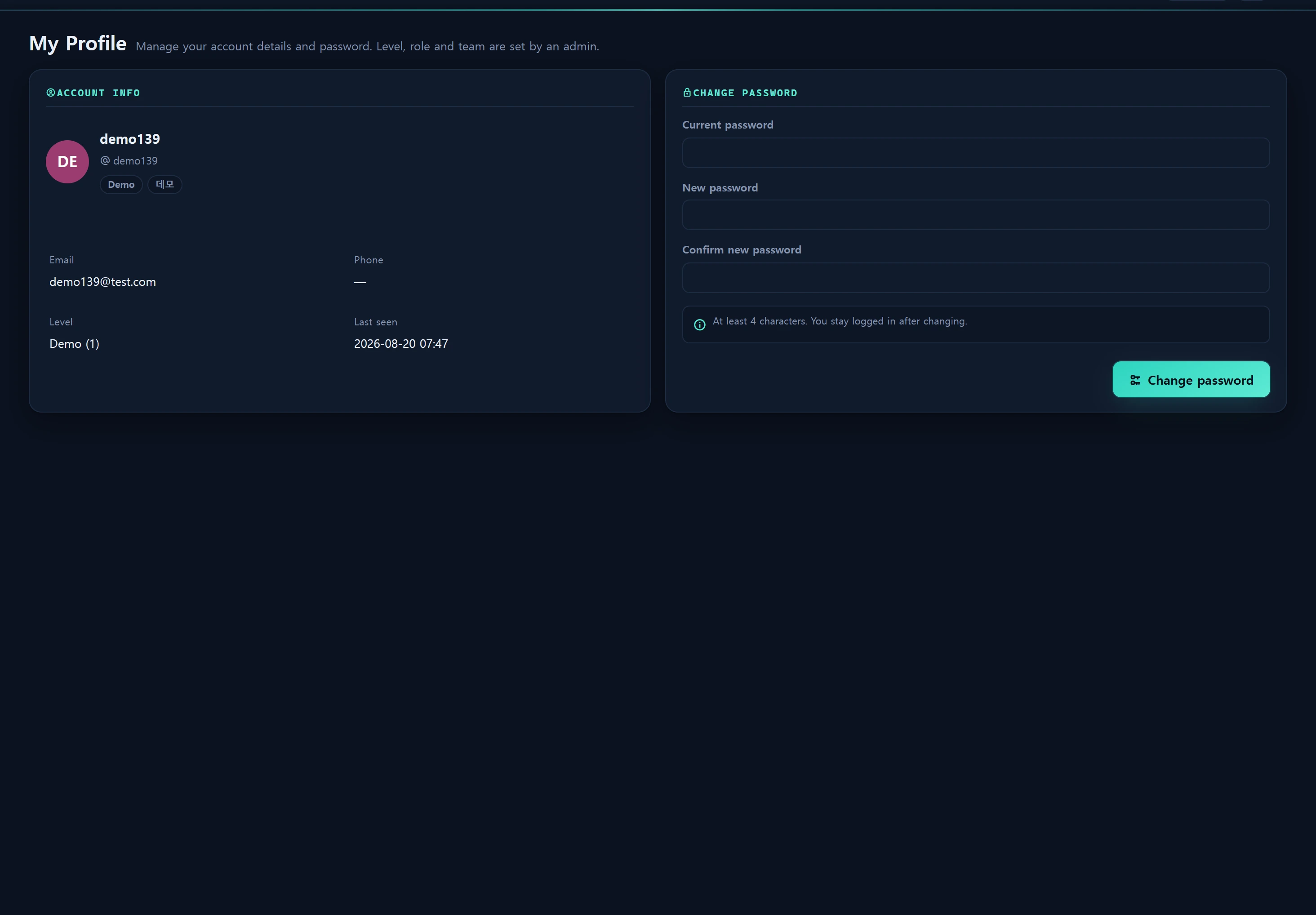
My Profile (/me) shows the details of the account you are currently signed in as, and lets you change your own password as a self-service action. Open it any time from the user dropdown at the top-right of the header. Every authenticated user can reach it — there is no extra level gate.
The only thing you can change here is your password. Your level (user_level), role, and team are assigned by an administrator in Users & Teams; here they appear as read-only badges.
Password verification and changes are securely saved using the current standard hash — see Login & auth.
When to use
- To rotate your password periodically, or change it immediately if you suspect it was exposed.
- To confirm your level · role · team and your last login time.
- To sanity-check your login ID, email, and contact number before asking an administrator for help.
Layout
The page is two cards.
1) Account info card (read-only)
At the top is an avatar (name initials + a fixed color derived from your name), your name and login ID, and a row of badges below.
| Field | Meaning | Source |
|---|---|---|
| Name / Login ID | Display name and @login_id |
users.name · users.login_id |
| Level badge | Demo / Staff / Admin (numeric level shown too) | users.user_level |
| Role badge | Informational role label (only if set) | users.role_id → infr_role |
| Team badge | Team membership (only if set) | users.team_id → infr_team |
| Account email | users.email |
|
| Contact | Phone / mobile | users.hp |
| Last login | YYYY-MM-DD HH:MM |
users.last_log |
The color tone of the level badge is chosen automatically from your level.
| Level (value) | Label | Badge tone |
|---|---|---|
| 1 | Demo | muted (grey) |
| 5 | Staff | accent (highlight) |
| 10 | Admin | crit (red) |
The avatar initials and color are computed from your name. Korean/CJK names use the first character; other names combine leading letters, and the hue is fixed as
crc32(name) % 360— so the same name always shows the same color everywhere.
2) Change password card
Three inputs and a Change password button:
- Current password — to confirm it's you.
- New password — at least 4 characters.
- Confirm new password — must match the field above.
As the hint says, changing the password keeps your session — you are not logged out and do not need to sign in again.
How to use
Change your password
- Open the user dropdown at the top-right → My Profile (see Navigation).
- Enter your current password.
- Enter the new password (4+ characters) and the confirmation identically.
- Click Change password. On success the inputs clear and a "Password changed." toast appears.
Under the hood the browser sends:
POST /me/password
Content-Type: application/json
X-CSRF-TOKEN: <session token>

{ "current": "OLD_PASSWORD", "password": "NEW_PASSWORD", "password_confirmation": "NEW_PASSWORD" }
A success response is { "ok": true }; on failure { "ok": false, "errors": { ... } } carries per-field errors.
Server validation rules
| Rule | Condition | On violation |
|---|---|---|
current |
required | 422 |
password |
required · min 4 · max 120 · confirmed (matches confirmation) |
422 |
| Current-password match | compared against the stored hash via Hash::check |
422 "Current password does not match." |
A mismatch between the new password and its confirmation is caught in the browser first and shown immediately ("New passwords do not match.") before anything is sent to the server.
Data sources
- Account info is read from the legacy
userstable (login_id · name · email · hp · lang · user_level · role_id · team_id · last_log), scoped to your own record via the sessioninfr_user_id. - Display labels, initials, and colors come from
App\Support\RolePolicy(level→label/tone, role label, avatar initials/hue). - The role label comes from
infr_roleand the team name frominfr_team. - A password change updates
users.passwordwith the current standard hash and writes one row to the audit loginfr_audit_logwithaction = profile.password,target_type = user(see Audit log).
Access
- View
/me· change via/me/password: any signed-in user (Demo 1 · Staff 5 · Admin 10 alike). Because this page only ever targets your own account, there is no separate level gate. - If your session is missing or expired, the view redirects to
/loginand the change request returns 401. - Level · role · team cannot be changed here. Creating other accounts or adjusting levels requires an administrator (level 10) in Users & Teams.
Troubleshooting & FAQ
Q. It says "Current password does not match." Double-check you typed the current password exactly, and use the same password you sign in with.
Q. What is the minimum length? The server accepts 4–120 characters. A stronger password is recommended by policy.
Q. Do I have to log in again after changing it? No. Your session is kept, so you are not logged out.
Q. I want to change my email, contact, or name. Those cannot be changed here. Ask an administrator to edit them in Users & Teams.
Q. How do I change my display language? Language is switched from the header language switcher — see Localization & language.
Related
- Login & auth — learn about console authentication and session policies.
- Levels & permissions — what Demo 1 · Staff 5 · Admin 10 mean.
- Users & Teams — where an administrator assigns level · role · team.
- Navigation — reach this page from the header user dropdown.
- Audit log — password changes are recorded as
profile.password.